DirectAdmin WordPress Manager
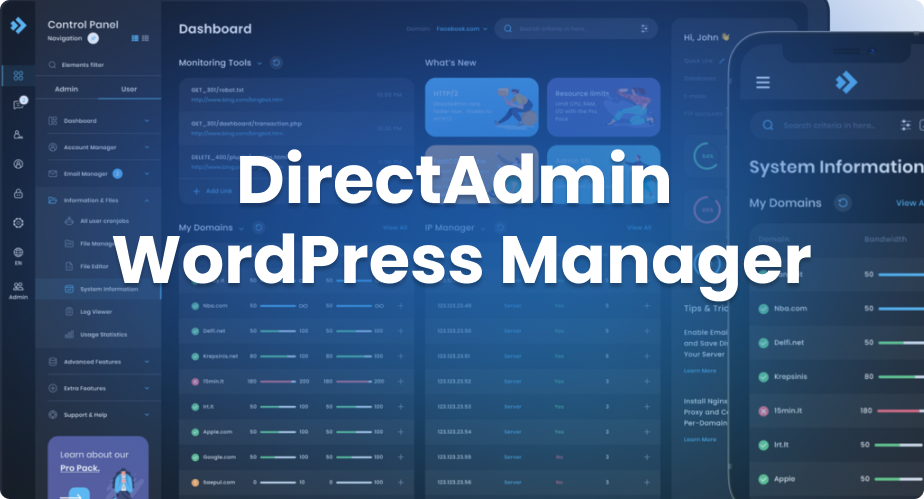
Managing WordPress installations can be a daunting task, especially for those who manage multiple websites. DirectAdmin’s WordPress Manager streamlines this process by allowing users to manage their WordPress installations directly from the control panel web interface. In this blog post, we’ll explore the various features of the DirectAdmin WordPress Manager, prerequisites for its usage, and guide you through the essential functionalities.
Key Features of WordPress Manager
The WordPress Manager is a powerful tool that offers several features to simplify the management of your WordPress websites. Here’s what you can expect:
- Access and Manage WordPress Installations: The WordPress Manager can be accessed via Advanced Features -> WordPress Manager at the user level.
- List of Installations: It provides a comprehensive list of all existing WordPress installations and locations suitable for new installations.
- New Installations: Easily set up new WordPress websites by filling in necessary information such as website title, admin credentials, and database details.
- Password Reset: Reset admin passwords directly from the control panel if credentials are lost.
- Database Configuration Management: Manage and update WordPress database connection details.
- WordPress Removal: Completely remove existing WordPress installations, including all files and database tables.
Prerequisites for Enabling WordPress Manager
Before you can take advantage of the WordPress Manager, certain prerequisites need to be met:
- WP-CLI Tool: The wp-cli tool must be installed on the server. This can be done using CustomBuild via the web interface or with the command:Copy code
/usr/local/directadmin/custombuild/build wp - Feature Enabling: Ensure that the WordPress Manager feature is enabled in the user or reseller packages or directly in the user/reseller configuration. Here’s how to check:
For a User
- Go to Account Manager -> Show All Users, click on your username, navigate to the Reseller tab -> Modify tab, and ensure the WordPress checkbox is checked.
For a Reseller Package
- Navigate to Account Manager -> Manage Reseller Packages, click on a package name, and make sure the WordPress checkbox is checked.
For a User Package
- Head over to Account Manager -> Manage User Packages, click on a package name, and ensure the WordPress checkbox is checked.
For Admin Accounts (Not Tied to a User Package)
- Go to Account Manager -> Show All Users, click on a username, navigate to the User tab -> Modify tab, and ensure the WordPress checkbox is checked.
Using WordPress Manager
After ensuring the prerequisites are met, you can start leveraging the WordPress Manager’s features.
New WordPress Installation
- Access the WordPress Manager: Navigate to Advanced Features -> WordPress Manager.
- Initiate New Installation: Click on the option to create a new WordPress installation.
- Fill Required Details:
- Website Title.
- Admin Credentials: Main admin account username, password, and email.
- Database Credentials: Either specify manually by selecting a database and user account or let the system create a new database for you.
Password Reset
If you lose the main admin account credentials, the WordPress Manager allows you to reset the password easily:
- Navigate to WordPress User Accounts: Go to the WordPress installation and find the list of associated user accounts.
- Reset Password: Select the appropriate user account and reset the password.
Database Configuration Management
You can also manage and update the database connection details for an existing WordPress installation. This comes in handy when performing website migrations or updating user credentials:
- Access Database Configuration: Within the WordPress Manager, select the option to manage database credentials for an installation.
- Update Details: Change the database username, password, or other connection details as required.
WordPress Removal
To delete an existing WordPress installation:
- Select the Installation: From the list of WordPress installations, choose the one you want to remove.
- Remove Installation: Confirm the removal, which will delete all WordPress files and database tables associated with that site.
Conclusion
DirectAdmin’s WordPress Manager is an invaluable tool for hosting providers and DIY entrepreneurs like Geert Jan who manage multiple WordPress sites. It simplifies the process from installation to maintenance, ensuring a streamlined and efficient management experience. Ensure your prerequisites are sorted, and dive into managing your WordPress sites more effectively today!
For more detailed guides and tips, keep following our blog. If you have any questions or need further assistance, feel free to reach out!